


 Donate
Public Awareness Campaign & Toolkit
Video Conference Background
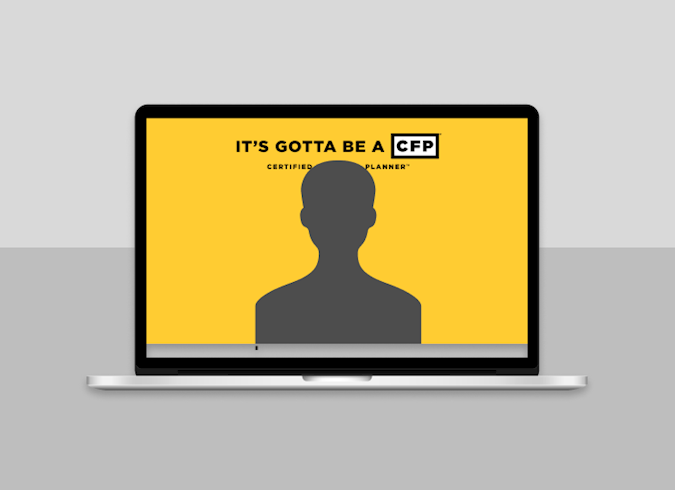
This campaign image can be used as a personal online video conferencing background.
To download an image:
- Click the download image link.
- Right-click on the image and select.
- Save the image to your desired folder.

How to update your background image in Zoom:
- Sign-in to the Zoom desktop portal.
- Click your profile picture, then click > Settings.
- Select Backgrounds & Filters.
- Add your own image by clicking + and choosing the previously saved image.
How to update your background image in Microsoft Teams:
- While you're setting up your video and audio before joining a meeting, select Background filters.
- Select Add new and then select the download image to upload from your computer.